Getting Started
👋 Welcome! Let's explore everything that makes SellerToolsPlus the best tool set for a BigCommerce merchant or a BigCommere store manager and help you become an expert level user in no time.
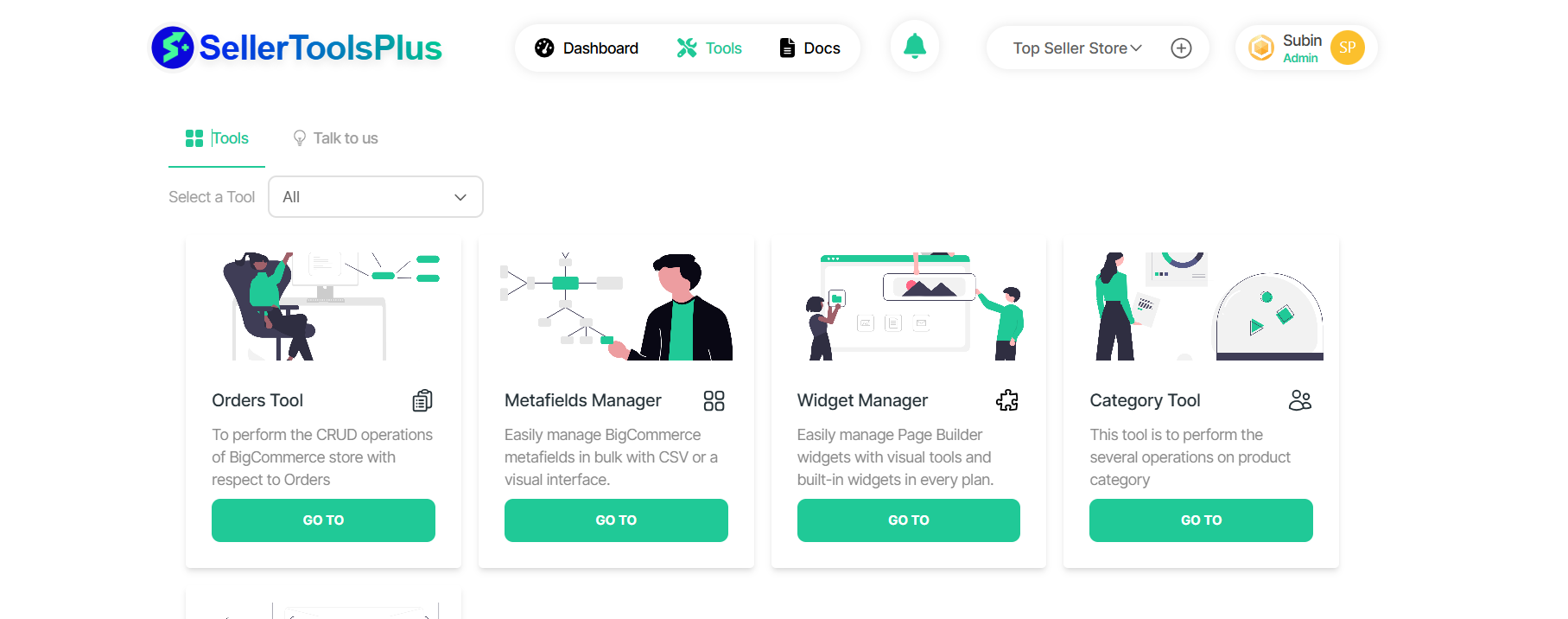
SellerToolsPlus is a suit of tools designed to help BigCommerce merchants/store managers manage their stores efficiently without requiring any complex Application Programming Interface (API) integration. You just sign up, connect your store and you're powered with additional set of tools to make your life easy.
Creating an Account.
There are two options to log in.
- You may sign up with a username and password
- You may login/Register with your google account if your email ID is provided by google
gmail/google workspace email - Learn more about setting up your account here
Organization
- Each organizations has its own limits as per the current plan.
- Each organization gets a provision to add unique store credentials for easy access later.
Teams
- Account owner can create teams from the dashboard/account/teams
- Each team can have an admin user and a set of users
- Primarily, the account owner can assign a store to the team admin and then the admin can further assign store to members of the team. Learn more about it below.
Adding stores to your account
- Any user as part of an organization can add stores using the Add store feature from the header.
- Added store will be automatically available to the owner of the organization. The owner can then assign the store to particular teams(team admins).
- You need your BigCommerce storeHash and API token with the required auth-scopes to use each tool
Using tools
Once added a store, you can use the tools on that store. Tools are listed in the main tools section of the tool accessible from the main menu. Ensure that the Auth token used to set up the store has all the scopes required by each tool
- Select the desired tool from the tiles of tools displayed in the tools section the app.
- Select the store you want to operate on. If you haven't already added one, app will ask you to add one. Add a store.
- After adding the store credentials, you will be navigated to the tool interface.
- Select the tab with appropriate action you want to perform (Browse, create, update , delete, etc.)
- Perform the operation.
- Access the
progresssection of the tool to view the progress for batch operations. - Upon successful completion of the batch operation, you will get a notification with further details on the operation.
- Upon errors, notification will contain relevant details of the error.
Dashboard Overview
The Dashboard allows you to view key information about your organization, tools, users, teams and more. Each section shows the most important details you would want to know about it.
Pricing page | Upgrading your plan
You will be in the trial plan when you sign up for the first time. The Pricing page is where you can start your journey with us with a paid plan with higher usage limit. Currently we are offering the following plans to choose from.
- Forever free trial plan
- Silver plan
- Gold plan
- Custom plan for enterprises