How to delete BigCommere metafields in bulk
In a practical scenario of managing the BigCommerce store, It is often required to delete metafields in bulk. We have created the CSV delete tool to solve that problem. With our CSV delete tool you can delete 100s of bigcommerce metafields under one resource type in one click. Managing data using a CSV file is one of the easiest methods available out there. Even if you are a beginner, you can manage csv files using your favourite spreadsheet tools(like, MS excel, Openoffice Calc etc.) you can use the delete tab of the app and start exporting the data in the CSV format.
Understanding the template
| Field Name | Type | Description | Example value |
|---|---|---|---|
| resource_id | number | The BigCommerce id of the resource (For example, product id) | 120 |
| id | number | The BigCommerce id of the metafield | 12 |
| key | string | The key of the metafield | Name |
| value | string | The value of the metafield | Ronaldo Cristiano |
| name | string | The name of the metafield to understand what it is | Employee Name |
| description | string | The description of the metafield to briefly tell what it is | field to store the Employee Name |
| namespace | string | The namespace of the metafield. Example - Multiple employee names can be in the same namespace | Employee |
| permission set | string | The permissions allowed on the metafield | - app_only Private to the app that owns the field - read Visible to other API consumers - write Open for reading and writing by other API consumers - read_and_sf_access Visible to other API consumers, including on storefront - write_and_sf_access Open for reading and writing by other API consumers, including on storefront |
Steps to delete the metafields in bulk
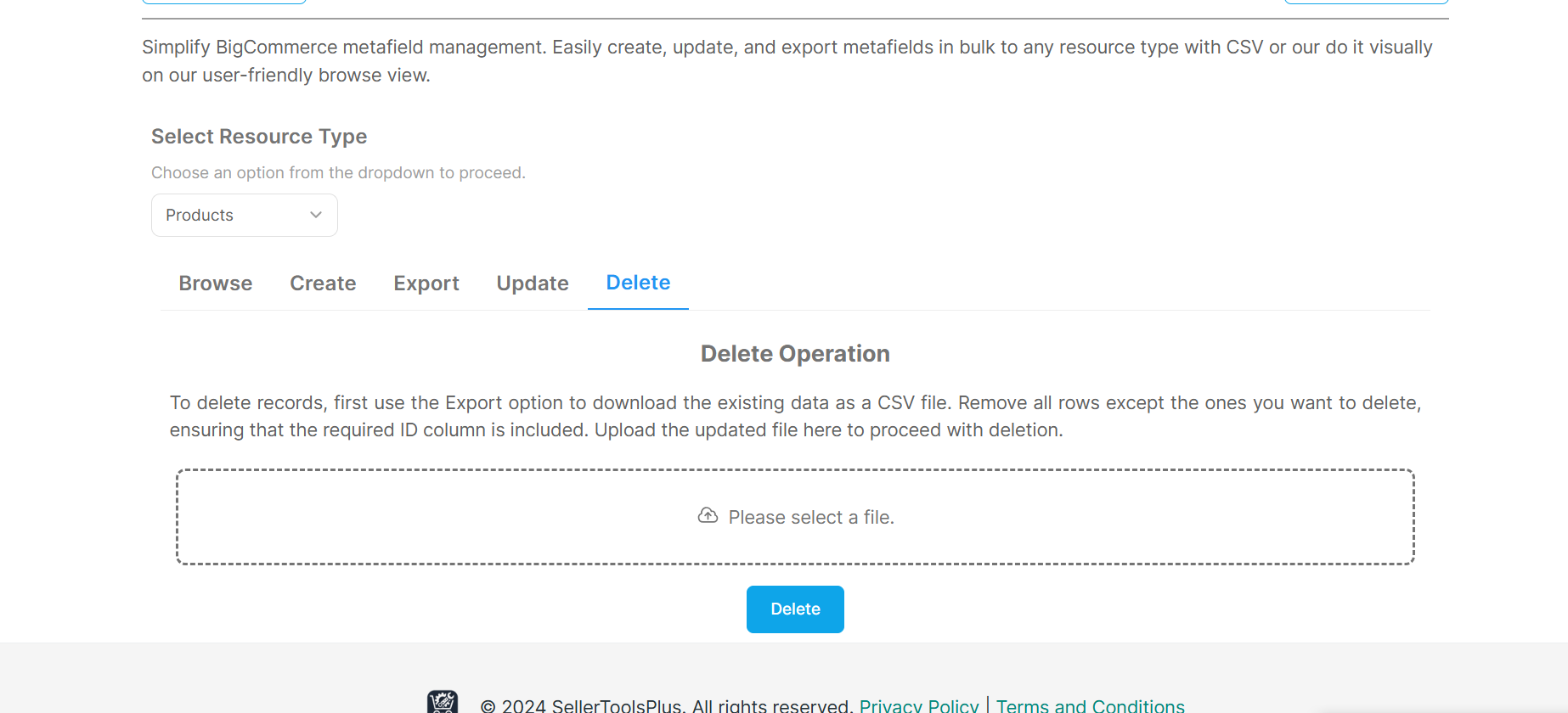
- Step:1 Begin by downloading the current export sheet from the "Export" tab.
- Step:2 Clean up the sheet by removing any data that you do not wish to delete, leaving only the entries targeted for deletion.
- Step:3 Confirm the resourceid and metafield id for each entry you want to delete to ensure accuracy.
- Step:4 Upload your modified sheet by clicking on the "Please select a file" button.
- Step:5 Proceed to delete the metafields by clicking the "Delete" button.
- Step:6 To confirm the successful deletion, navigate to the "Browse" tab and search using either the resourceid or metafield id.
The user interface is displayed here.
Warning!
Permanent Deletion:
- Meatfields deleted using the tool will be permanently deleted from the store.
- Ensure that only intended entries are present in the template file prepared for bulk deletion.
- Take a back up of these entries if you wish to use this data later