Bulk Category management for BigCommerce made easy

The curious case of Category Management in BigCommerce
Anyone who worked with a BigCommerce catalog in the modern experience(v3) knows that BigCommerce takes only category ID while creating a product either using the CSV or API. As the category ID is a system generated id, one needs to create categories in advance and obtain their IDs beforehand and populate it in the CSVor API payload whenever you work on products in bulk.
We are working on BigCommerce stores of multiple types(Stencil storefront, headless, multichannel, multicurrency, multilingual BigCommerce stores) for the past 4+ years and we faced this difficulty every time we handled a complex catalog. Especially when you are migrating to BigCommerce from another platform, sometmes you come with a large set of SKUs mapped into a complex tree of categories with parent child branches.
By the time we were setting up our second store for an enterprise customer, we wrote an app to solve the category Management complexity. As our non technical team members will be managing the catalog post launch, we gave these apps a UI so that they can use CSV templates to manage categories in product catalogs. We are opening up access to this application for everyone as a SaaS(With a generous forever free tier to try the features). This article walks you through the usage of the tool.
Our solution
Imagine you have categories like this
/electronics
/electronics/computers
/electronics/computers/laptops
/electronics/computers/laptops/14-inch
/electronics/computers/laptops/16-inch
/electronics/computers/desktops
/electronics/computers/accessories
/electronics/computers/accessories/mouse
/electronics/computers/accessories/keyboards

/electronics/home-appliances
/electronics/home-appliances/kitchen
/electronics/home-appliances/cleaning

/clothing
/clothing/men
/clothing/men/shorts
/clothing/men/pants
/clothing/men/shirts-t-shirts
/clothing/women
/clothing/women/tops
/clothing/women/bottoms
Here we have
- 2 x top level categories(electronics and clothing),
- 2 x level 2 categories under electronics,
- 3 x level 3 categories under electronics and
- 4 x level 4 categories under electronics.
Similarly, we have
- 2 x level 2 categories under clothing,
- 5 x level 3 categories under clothing etc.
As BigCommerce works with IDs our tools is also designed to use IDs. First thing we need to do is to assign some dummy IDs and patent ids to these categories. Let us start with Level 1 categories
| id | parent_id | name | tree_id |
|---|---|---|---|
| 201 | 0 | electronics | 1 |
| 202 | 0 | clothing | 1 |
You can see that I am using dummy ids 201, 201 to the top level categories. As we are working with a parent - child relationship here, we need to use IDs that does not exist in my store. Also you can see that parent ID is '0' for the top level categories.
We can continue adding the level 2 categories in the same fashion. This time, we will use the ids we gave to level 1 categories as parent_ids of the level 2 categories. If you are using a spreadsheet program like google sheet or MS excel, you can assign ids and parent ids easily for large set of categories easily using formulas and techniques.
| id | parent_id | name | tree_id |
|---|---|---|---|
| 201 | 0 | electronics | 1 |
| 202 | 0 | clothing | 1 |
| 203 | 201 | computers | 1 |
| 204 | 201 | home-appliances | 1 |
| 205 | 202 | men | 1 |
| 206 | 202 | women | 1 |
Similarly, if we continue to assign dummy Ids and parent_ids to all levels respectively, we will end up with a sheet like this.
| id | parent_id | name | tree_id |
|---|---|---|---|
| 201 | 0 | electronics | 1 |
| 202 | 0 | clothing | 1 |
| 203 | 201 | computers | 1 |
| 204 | 201 | home-appliances | 1 |
| 205 | 202 | men | 1 |
| 206 | 202 | women | 1 |
| 207 | 203 | laptops | 1 |
| 208 | 203 | desktops | 1 |
| 209 | 203 | accessories | 1 |
| 210 | 207 | 14-inch | 1 |
| 211 | 207 | 16-inch | 1 |
| 212 | 209 | mouse | 1 |
| 213 | 209 | keyboards | 1 |
| 214 | 204 | kitchen | 1 |
| 215 | 204 | cleaning | 1 |
| 216 | 205 | shirts-t-shirts | 1 |
| 217 | 205 | shorts | 1 |
| 218 | 205 | pants | 1 |
| 219 | 206 | tops | 1 |
| 220 | 206 | bottoms | 1 |
Now, the data is ready with all mandatory fields. Save this as a CSV(category_create.csv) file and head to the create tab in our category tool (tools->category tool->create)
Select the file using the file upload selector and click on the create categories button.
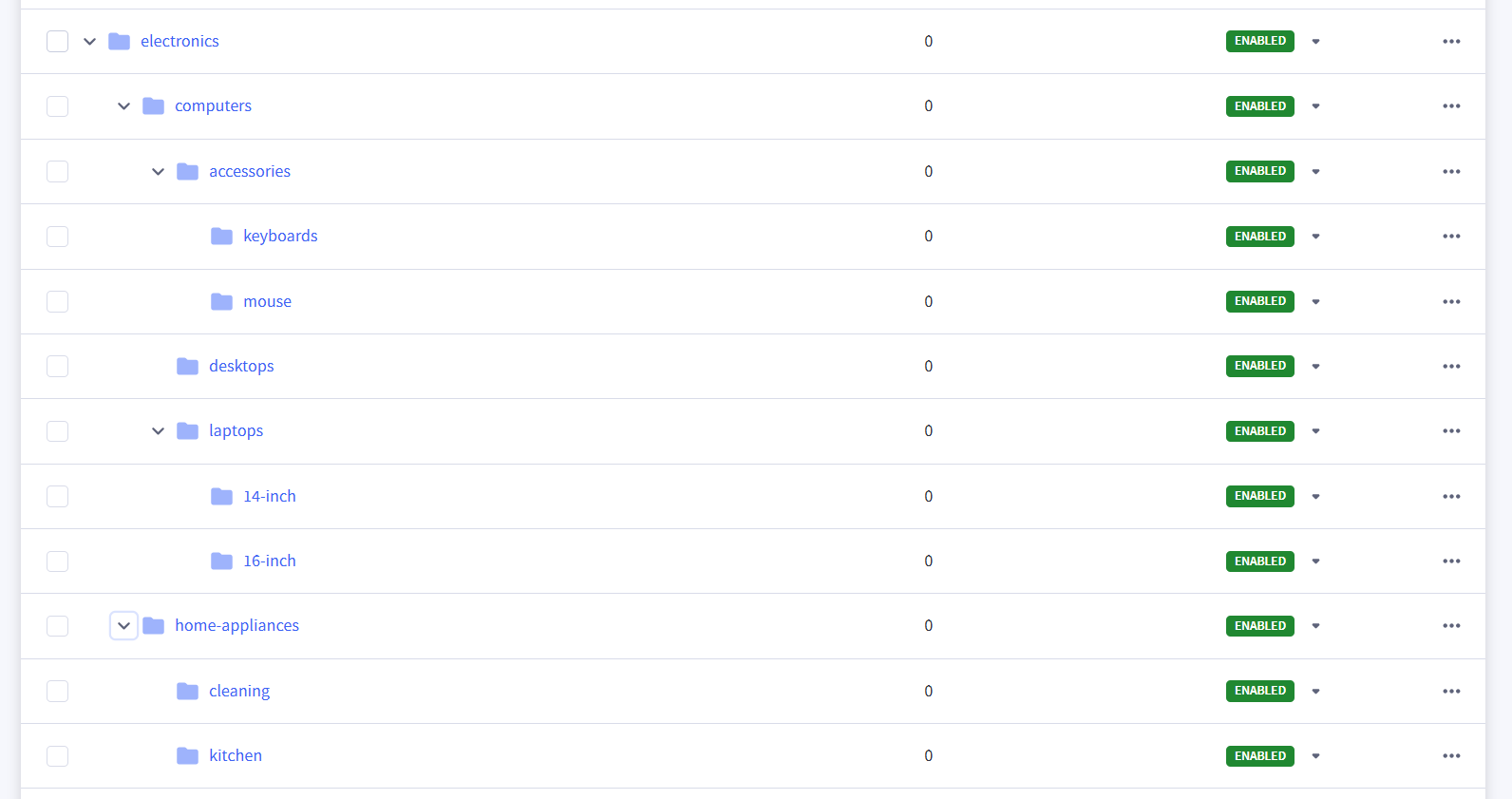
Result in the store
Note: only fields that are important for this article are given in the above example table. At present, you need to populate sort_order, url.path and url.is_customized columns also for a successful creation of category branches