Delete the categories
Export Existing Categories:
- Navigate to the Export Tab and export the existing categories.
Update the Exported CSV File:
- Edit your exported CSV file so it only contains the categories you want to eliminate.
- Remove any category entries you wish to keep in the store.
- Remember to retain the the value in category_id column for all the categories you're deleting, as this is a mandatory field for the deletion."
Upload the Updated CSV File.
- To upload the file with the categories you want to delete, just click on "please select a file". This will allow you to choose the updated file from your computer.
- After uploading your CSV, click the "Delete Categories" button to begin the deletion.
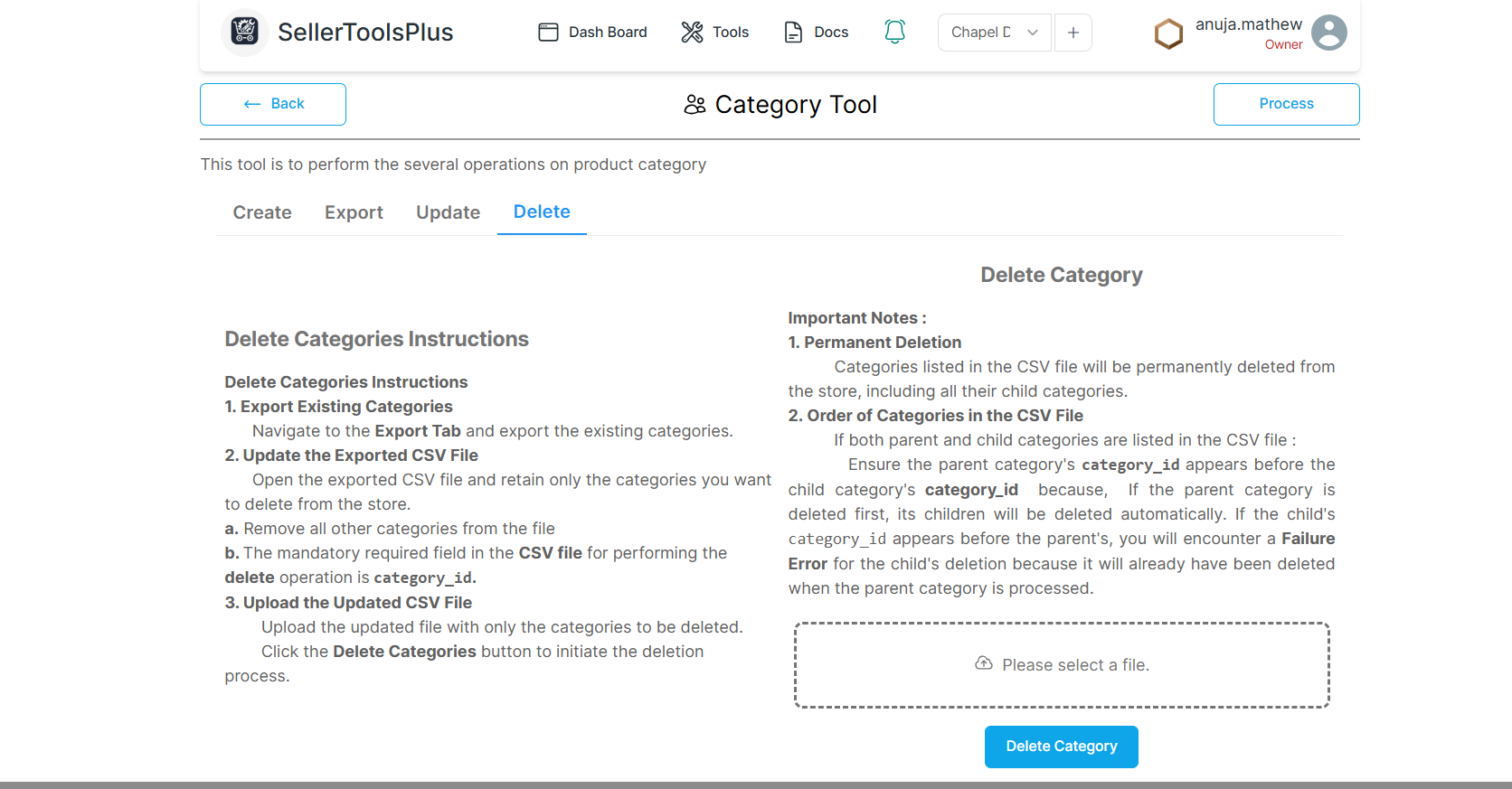
Confirming the Deletion
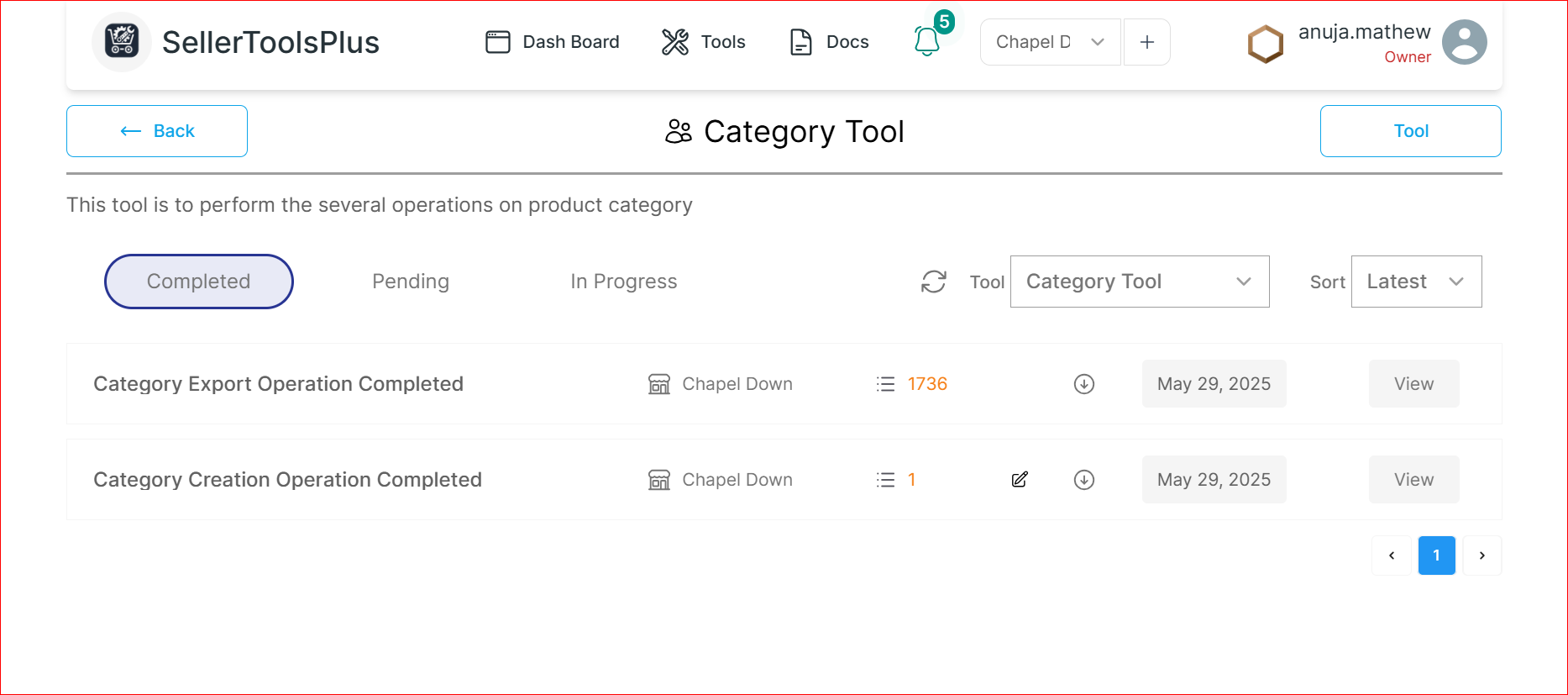
- You can monitor the deletion process by clicking the Process button on the right side of the page to check its status. Once complete, head over to BigCommerce to confirm the deletion was successful.
A few notes to keep in mind
Permanent Deletion:
- Categories listed in the CSV file will be permanently deleted from the store, including all their child categories.
Order of Categories in the CSV File:
If both parent and child categories are listed in the CSV file:
- Ensure the parent category's category_id appears before the child category's category_id.
- If the parent category is deleted first, its children will be deleted automatically.
- If the child's category_id appears before the parent's, you will encounter a failure error for the child's deletion because it will already have been deleted when the parent category is processed.