Export the Categories
Our tool lets you export existing categories in a BigCommerce store to a CSV file. This comes very handy when you are migrating categories from a sandbox to a production store. Here's a step-by-step breakdown of how to export data from the "BigCommerce Categories" section :
Step-by-Step Instructions:
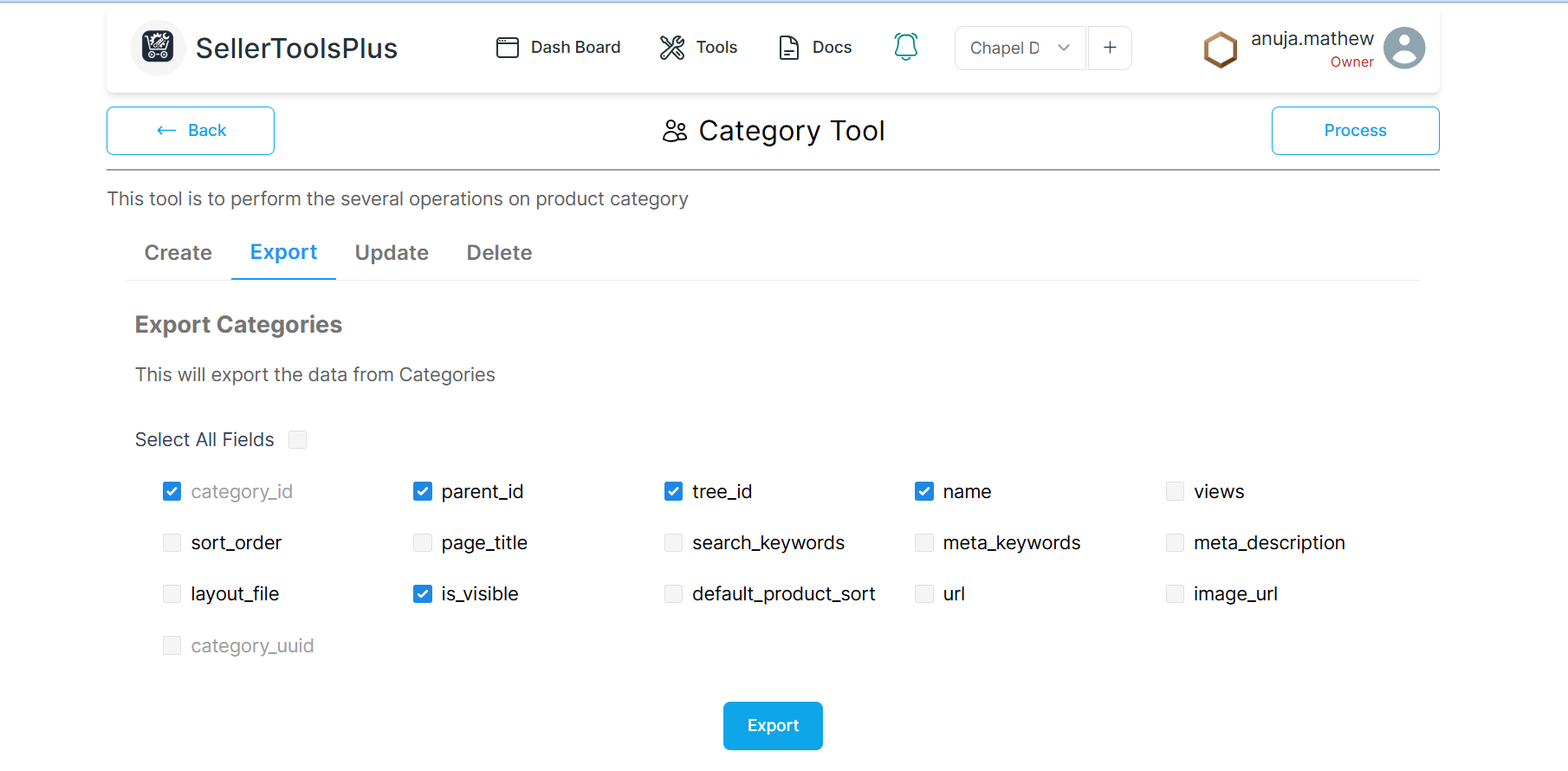
- Navigate to the "Export Categories" Section: Start by navigating to the Export tab within the Category tool
-
Choose Fields to Export: You'll see a list of fields (columns) associated with the "Categories" data. Each field has a checkbox next to it.
-
Select All Fields (Optional): If you want to export all available data, check the box labeled "Select All Fields." This will automatically select all the checkboxes next to each field name.
-
Manually Select Specific Fields (Alternative): If you only need certain fields, manually check the boxes next to the field names you want to export. In the screen, the following fields are selected:
- category_id
- parent_id
- tree_id
- name
- is_visible
-
Review Your Selections: Double-check that you've selected all the fields you require. Uncheck any fields you don't need to include in the export.
-
Initiate the Export: Click the blue "Export categories" button. This will trigger the application to generate and download the data based on your selected fields.
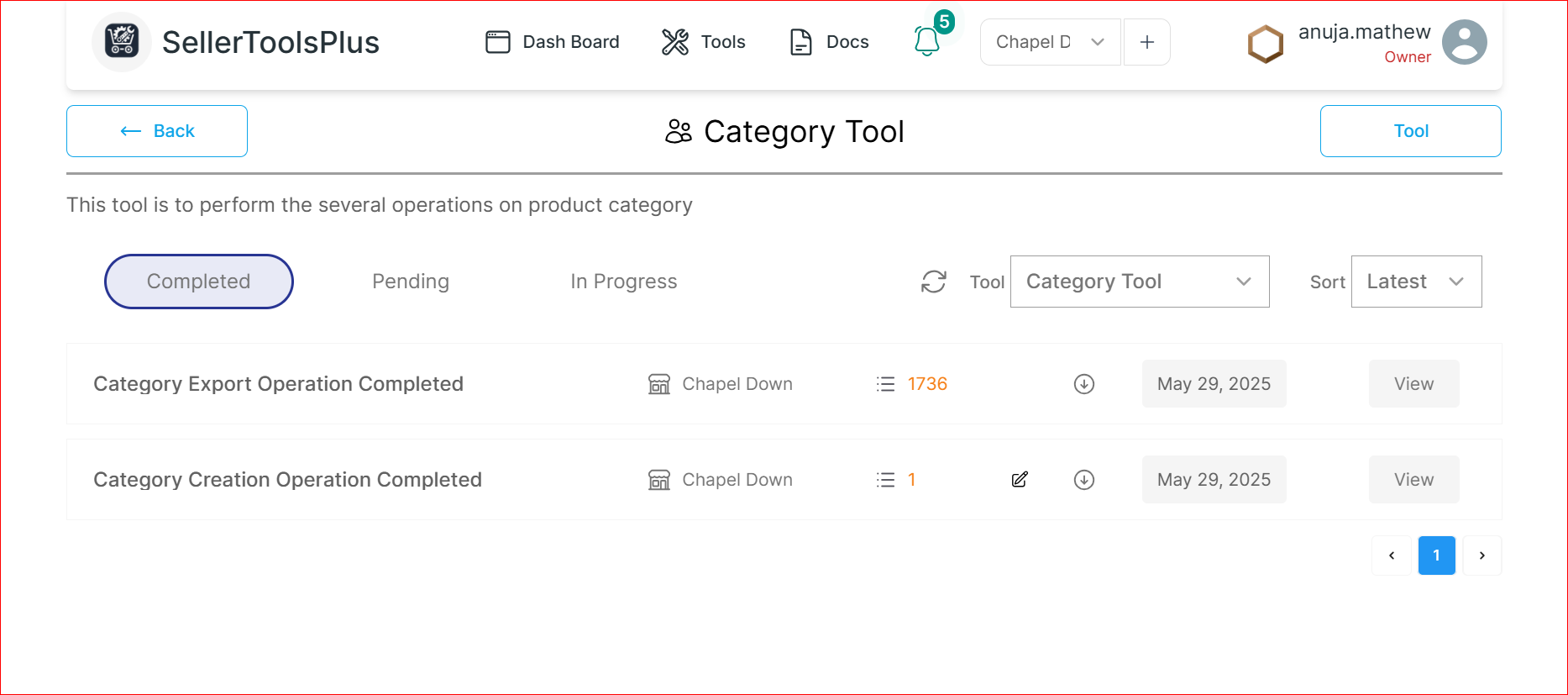
- Viewing the progress: Once the export is complete, your will get a notification. If the process is taking time, You can also check the Process button to see the status.
- Downloading the exported file: In the progress section finished processes are listed in the completed section. Click on the "view" option there and download the CSV directly.
- Data Format: The exported data will be in CSV (Comma Separated Values) format. This is a widely used format for storing and exchanging data, where each field is separated by a comma.
- Permissions: Ensure you have the necessary permissions to export data from the "Categories" section.
- Application Specifics: The exact steps and options might vary slightly depending on the specific application or website you are using.