Create Product Categories in bulk using CSV
Creating categories in bulk for your BigCommerce store can help you organize your products efficiently. As of writing this, there is no native tool to create a bunch of categories in bulk. By using our tool, you can create categories trees including thousands of categories in one go. This guide provides step-by-step instructions to streamline the process.
Go to the create tab in the categories tool to start the process. If you already don't have a CSV template, download a sample and start editing it with valid data.
Optionally you may also download the Sample CSV here.
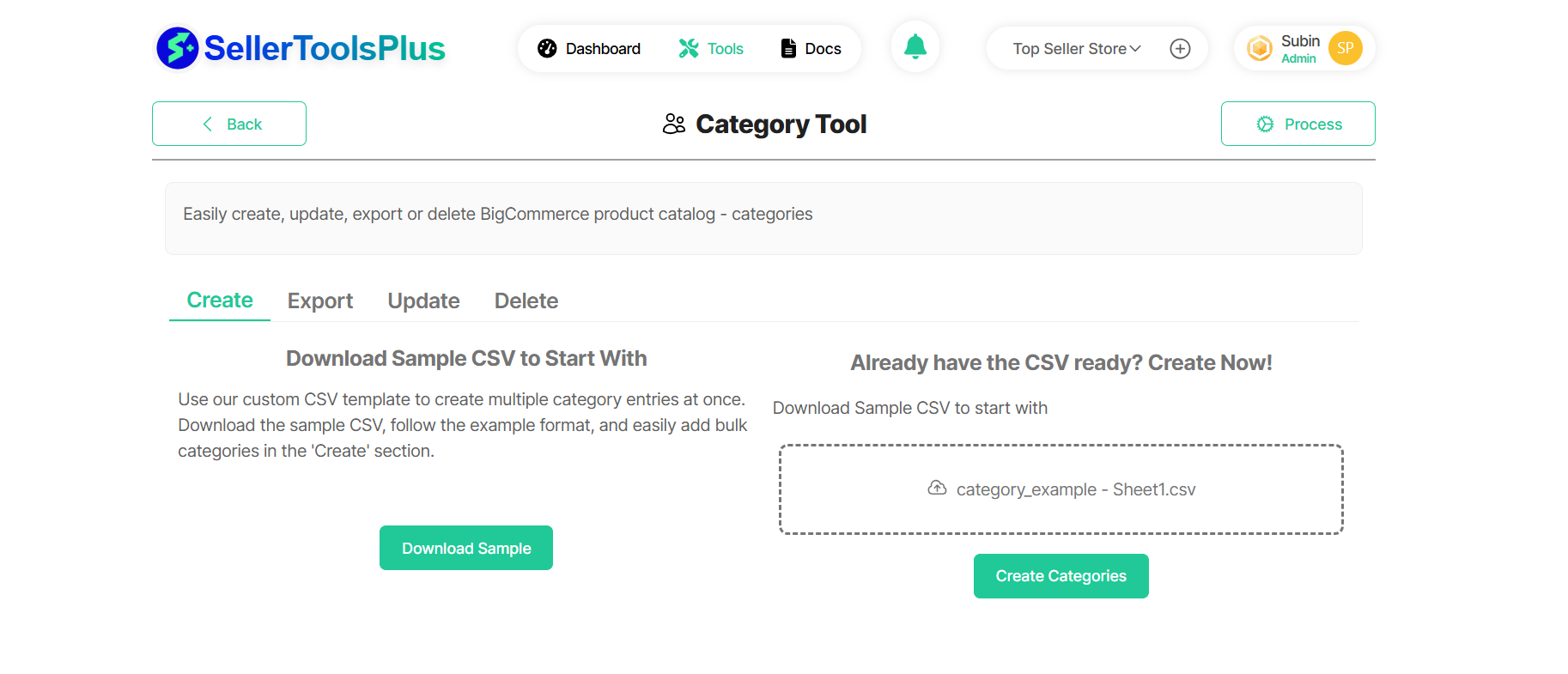
Understanding the CSV template
Before importing categories, it's essential to prepare a CSV file that contains the necessary data. You may use the below table to understand each column of the categories sample CSV template. Adhere to the guidelines, type given against each column for a successful CSV operation.
| Field Name | Type | Description |
|---|---|---|
| name | string (required) | The name displayed for the category. Name is unique with respect to the categoryʼs siblings. The number of characters must be less than or equal to 50 |
| id | number | dummy id to create multilevel parent child branching. Use an ID that is not already used to insert a category to avoid errors when using a sheet with child categories. |
| url | object | If not provided in POST request, the URL is autogenerated from the category name. |
| path | string | The number of characters must be less than or equal to 255 characters |
| is_customized | boolean | |
| parent_id | integer | The unique numeric ID of the category parent. To create a top-level category, specify 0 as parent_id. Otherwise, you can specify the dummy id given to the intended parent category here. Required in a POST if creating a child category. |
| tree_id | integer | The ID of the category tree. To create a top-level category, specify the tree_id. Otherwise, you can specify the parent_id. |
| description | string | The product description, which can include HTML formatting. |
| views | integer | Number of views the category has on the storefront. |
| sort_order | integer | Priority this category will be given when included in the menu and category pages. The lower the number, the closer to the top of the results the category will be. Min: -2147483648 Max: 2147483647 |
| page_title | string | Custom title for the category page. If not defined, the category name will be used as the meta title. |
| meta_keywords | array[string] | Custom meta keywords for the category page. If not defined, the storeʼs default keywords will be used. Must post as an array like: ["awesome","sauce"]. |
| meta_description | string | Custom meta description for the category page. If not defined, the storeʼs default meta description will be used. The number of characters must be less than or equal to 65535 |
| layout_file | string | A valid layout file. (Please refer to this article on creating category files.) This field is writable only for stores with a Blueprint theme applied. The number of characters must be less than or equal to 50 |
| image_url | string | Image URL used for this category on the storefront. Images can be uploaded via form file post to /categories/{categoryId}/image, or by providing a publicly accessible URL in this field. Must be either a full-qualified URL or an empty string. |
| is_visible | boolean | Flag to determine whether the product should be displayed to customers browsing the store. If true, the category will be displayed. If false, the category will be hidden from view. |
| search_keywords | string | A comma-separated list of keywords that can be used to locate the category when searching the store.The number of characters must be less than or equal to 255 characters |
| default_product_sort | string | Determines how the products are sorted on category page load. Allowed: use_store_settings |
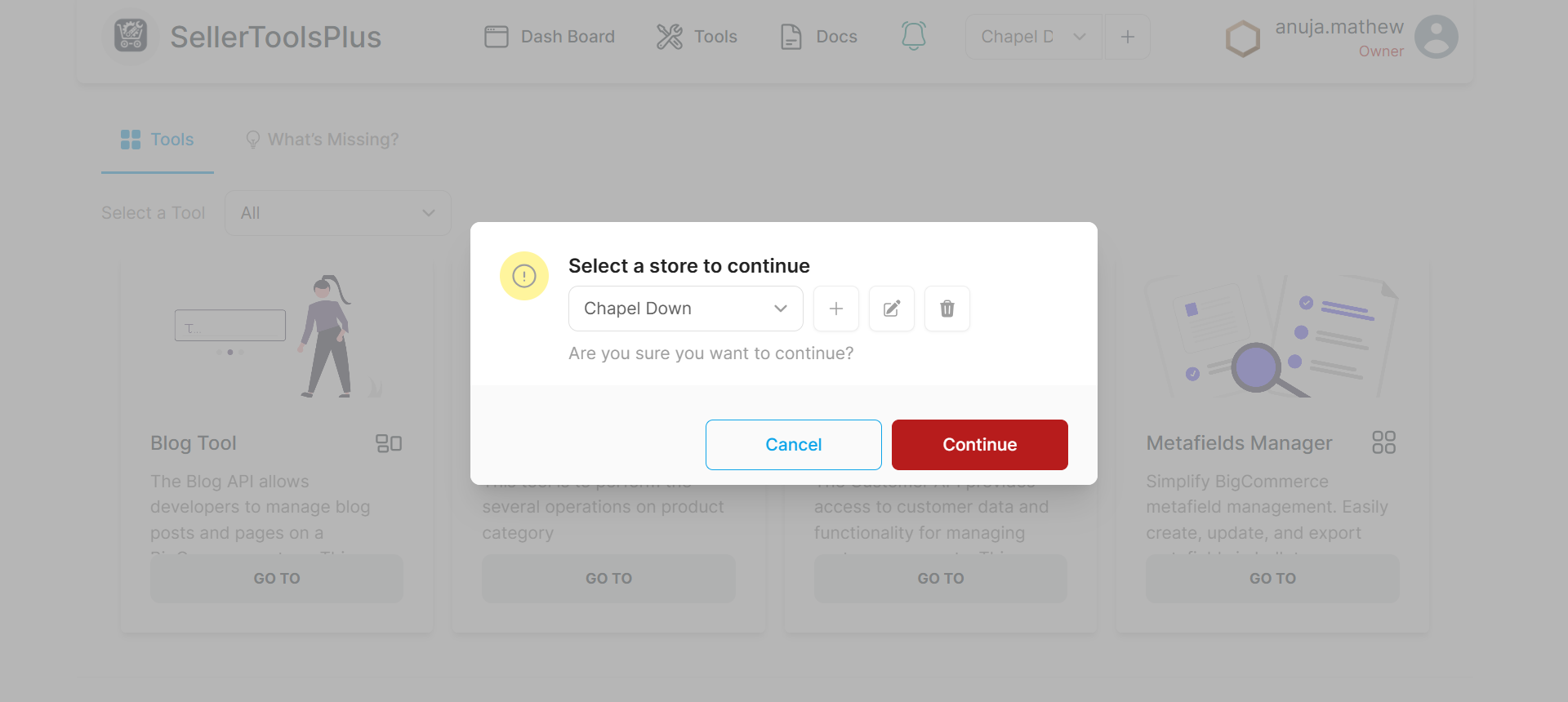
Step 1: Ensure that you are in the right store.
- Select a store and ensure that the store where you want to add the categories is selected.
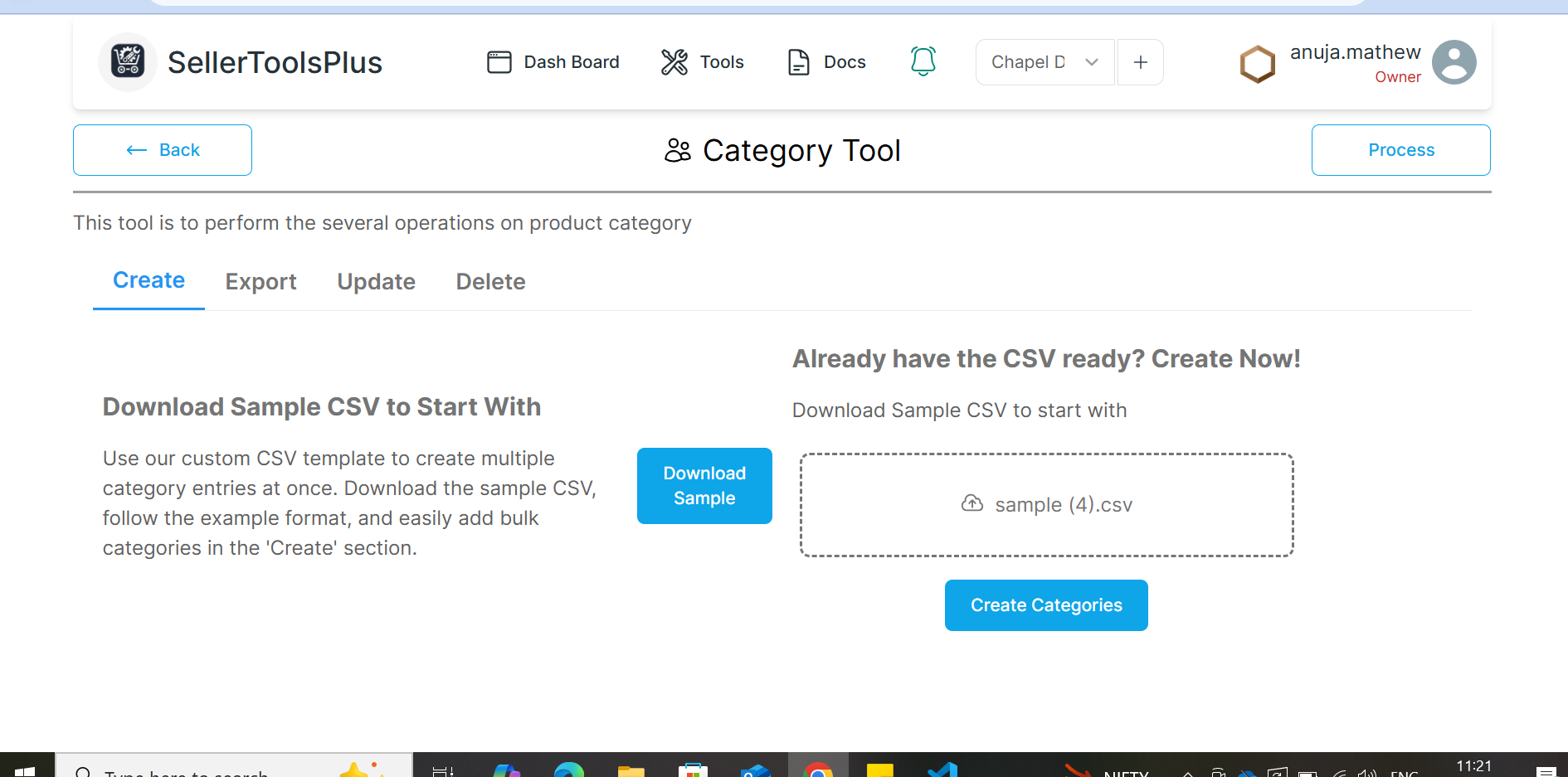
Step 2: Upload Your CSV File
- Choose your prepared CSV file from your computer.
- Click "Please select a file" to start the upload process.
- Click the Create categories button to start the import process.
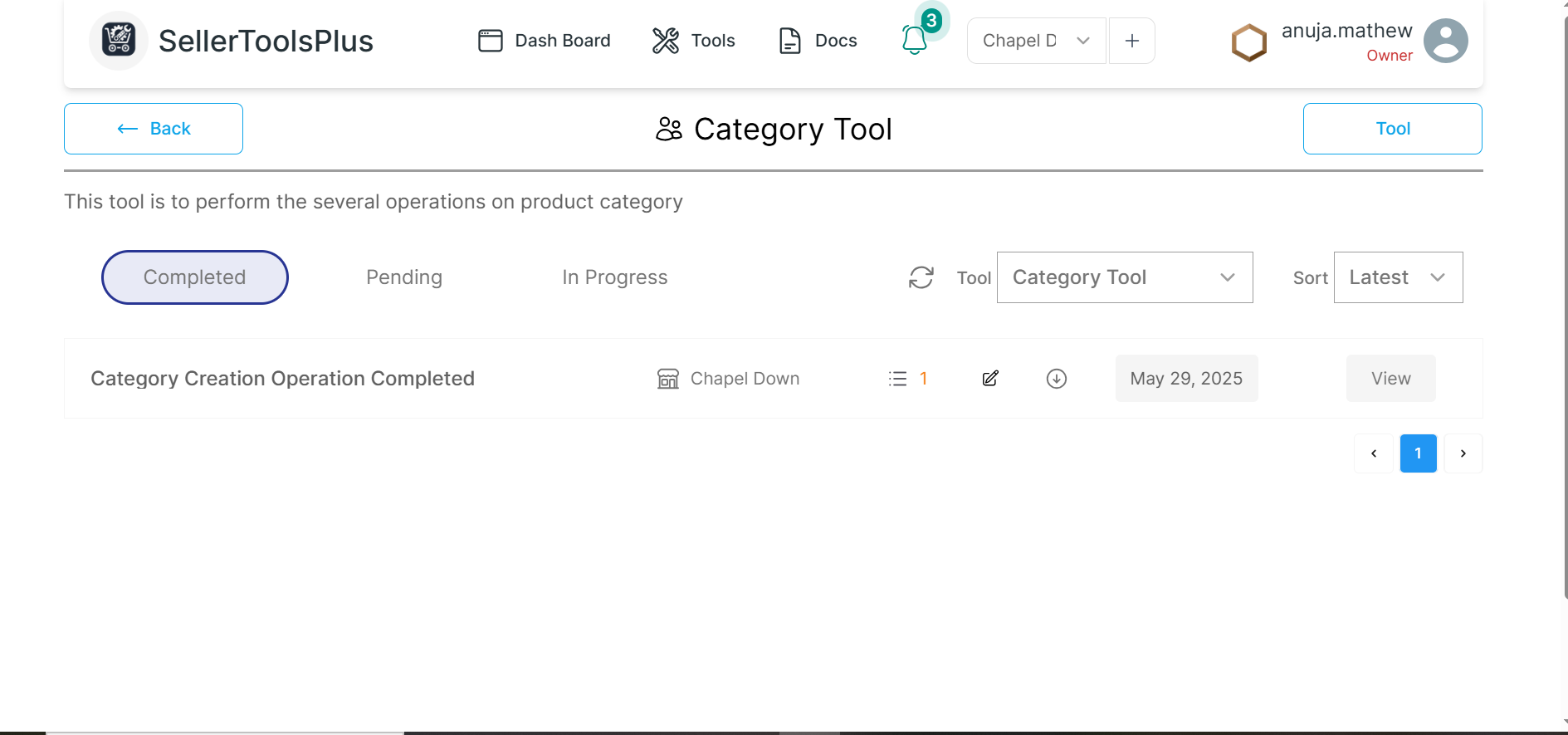
Step 3: Wait for the notification
- Once the import is complete, you will get a notification
- You may see the details of the notification from the notification section by clicking on the notification bell icon.
Step 5: Verify your store to ensure successful creation of Categories
- After the import is complete, navigate back to the Categories section.
- Verify that all categories have been created and are correctly organized.
- Check for Errors: If the import fails, check for formatting errors in your CSV file.
- Use Descriptions: Including descriptions can enhance SEO and customer understanding.
- Image Links: Ensure that image URLs are correct and accessible.
By following these steps, you can efficiently create and manage categories in bulk for your BigCommerce store, enhancing organization and customer experience.
This article also talks about category creation using CSV with an example parent-category, child category structure Read here .