Assigning Stores to users
This guide explains how to manage store access by assigning multiple users to a specific store location. This ensures that only relevant team members can view and manage store-specific data.
Overview
The Assign Users feature allows Owners and Admins to delegate store permissions. By assigning users to a store, you control who has visibility and usage rights for that specific BigCommerce store.
Managing Assignments
You can manage user assignments during the creation of a new store or by editing an existing one.
How to Assign Users
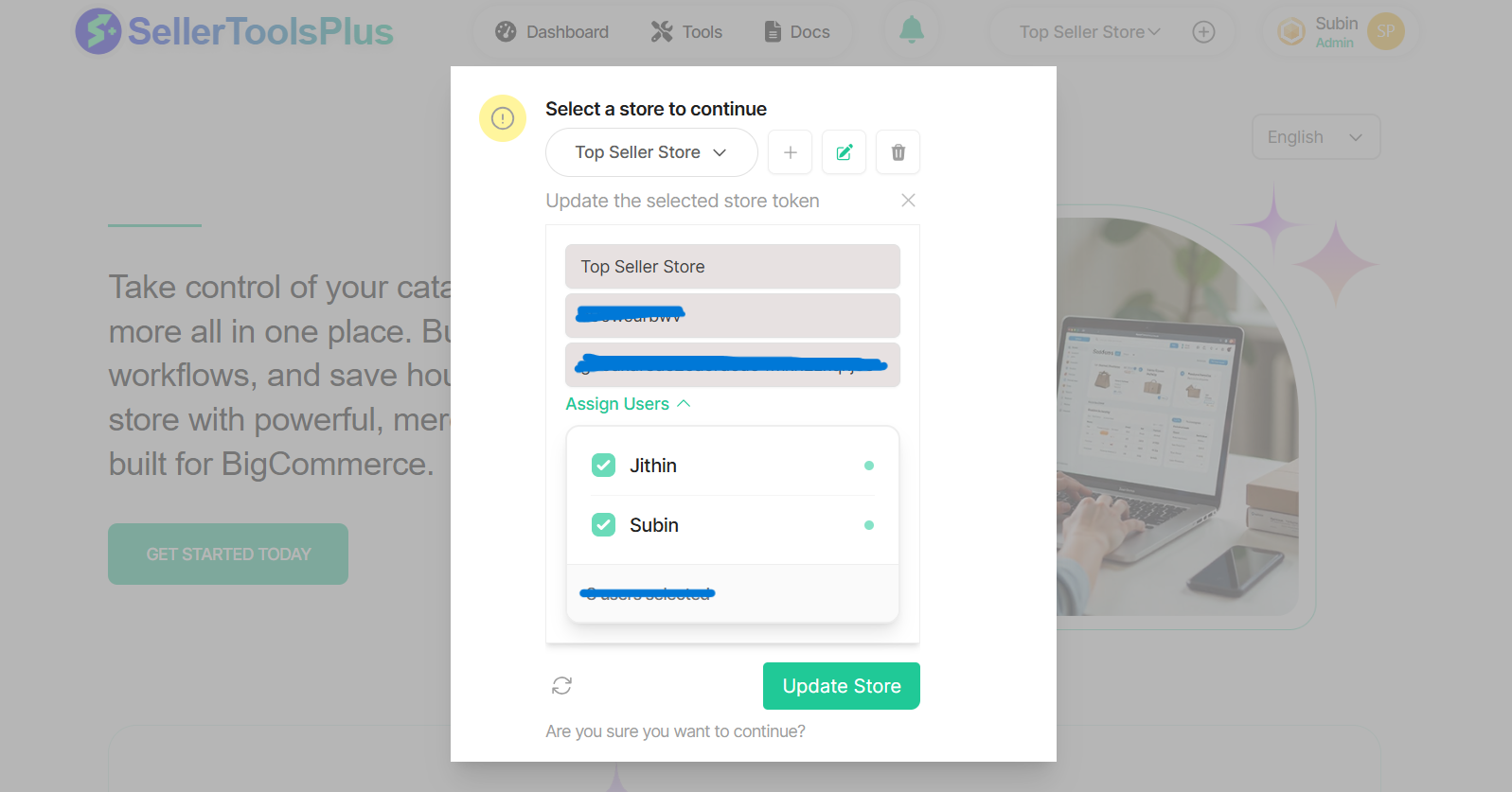
- Navigate to the Stores module.
- Click Add Store or select Edit on an existing store entry.
- Complete the required store details (Name, store hash, API token, etc.).
- Scroll to the bottom of the form to find the Assign Users section.
- Toggle the "Assign Users" option to expand the user list.
- Check the boxes next to the users you wish to grant access to.
- Click Save.
When editing an existing store, users who are already assigned will appear with their checkboxes pre-selected.
Access Control & Permissions
The visibility of the "Assign Users" section depends on your organizational role.
| Role | Permissions | User List Visibility |
|---|---|---|
| Owner | Full Access | Can see and assign all users within the organization. |
| Admin | Team Access | Can see and assign only users within their specific team. |
| User | No Access | Cannot see the "Assign Users" section. |
Default Access Logic
- Owner Access: Owners are automatically granted access to every store created within the organization.
- User Creation: If a standard User creates a store, the Owner is automatically assigned, but the User cannot assign other colleagues to that store.
Creating Teams
Organization Account owners can create a team by navigating to accounts->Teams section from the dashboard sidebar
A team can have one Admin and multiple users. Once a store is assigned to Admin, admin can then be able to assign it to his team users.
Troubleshooting & Feedback
Success Confirmation
Upon clicking Save, you will receive a toast notification:
"Store assignments updated successfully."
Error Messages
If the assignment fails due to a connection issue or validation error, the system will display an error alert. Common reasons include:
- Database Timeout: Please wait a moment and try saving again.
- Permission Change: If your role was changed while the pop-up was open, you may no longer have permission to assign users.
Standard Users are prohibited from using this function. Any attempt to bypass the UI to assign users via API will be blocked and logged for security auditing.